How to Capture Screenshots
Capture specific frames during a recording as standalone PNG or SVG images.
Overview
Capture a specific frame as a standalone image while a tape records. A Screenshot
command grabs whatever the terminal grid holds at that point and writes it to disk.
The rest of your recording continues normally.
Tip
SVG screenshots need no external tooling — no FFmpeg, no monospace font. Prefer
.svg for anything you embed in docs or a README. PNG screenshots are raster and
render with an installed monospace font.
Basic Screenshot Capture
Screenshot "filename.svg"Two formats are supported, auto-detected from the file extension:
.svg— vector, lightweight, text-selectable, scales crisply. Drawn directly by VCR#'s SVG renderer (no font or FFmpeg required)..png— raster, pixel-perfect. Rendered in-process; needs a monospace font.
Any extension other than .svg is treated as PNG.
Example
Output "demo.svg"

Type "docker ps"
Enter
Wait
Screenshot "containers.svg"    # Capture the current state
Timing Your Screenshots
A Screenshot captures the grid at the exact moment it runs, so place it after the
output you want has appeared.
Capture after a fixed pause using Sleep:
Type "ls -la"
Enter
Wait
Sleep 500ms                     # Let output settle
Screenshot "files.svg"
Capture when specific output appears using Wait:
Type "npm test"
Enter
Wait /tests passed/             # Block until this matches
Screenshot "test-results.svg"
A bare Wait (no pattern) blocks until output stops changing — handy right before a
screenshot when you don't have a reliable string to match.
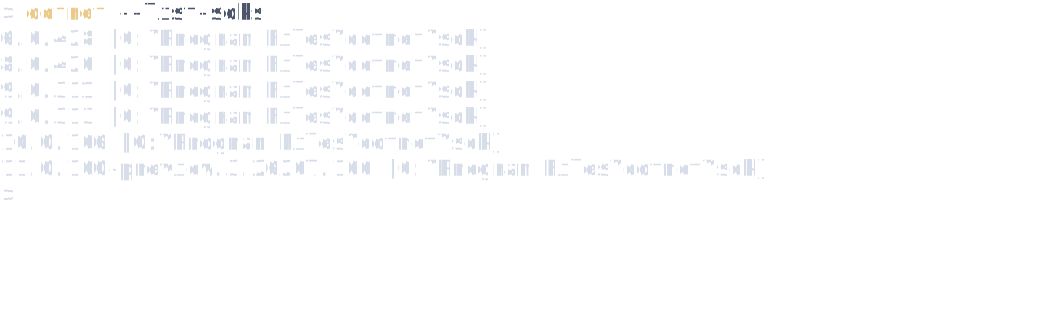
Static SVG screenshot
This is a real SVG screenshot captured mid-recording with
Screenshot "screenshot-svg.svg". The text is selectable and the image stays crisp at
any size:
Capturing a clean frame after an Exec command
Exec runs your command as the shell's foreground process and VCR# waits for its
output to settle before the recording ends. The screen is not cleared out from
under you — but a plain Screenshot placed too early can still fire before the command
has finished drawing. Make sure the output is settled first.
Option 1 — Wait, then Screenshot:
Output "table.svg"
Exec "my-tui --render-table"
Wait                            # Block until output settles
Screenshot "table.svg"
Option 2 — make Screenshot settle automatically with
Set ScreenshotWaitForInactivity:
Output "table.svg"
Set ScreenshotWaitForInactivity true     # wait for the grid to stop changing
Exec "my-tui --render-table"
Screenshot "table.svg"
By default Screenshot waits up to 500ms of inactivity; tune it with
Set ScreenshotInactivityTimeout:
Set ScreenshotWaitForInactivity true
Set ScreenshotInactivityTimeout 1s
Option 3 — emit a single settled frame with Set Mode static. This is the cleanest
choice when you don't want an animation at all, just one still image of the final state:
Set Mode static               # run Exec, settle, emit one static frame
Output "table.svg"            # every Output must be .svg or .png
Exec "my-tui --render-table"
Set Mode static skips the animation/frame-capture loop entirely and writes exactly one
settled frame per Output, with no command echo. Every Output in a static-mode tape
must be .svg or .png.
Static SVG widgets for embedding
For an SVG widget embedded in a docs site or README, combine the static-mode and SVG sizing settings:
Set Mode static              # one clean static frame
Set Size fit                 # crop to content — no need to guess Cols/Rows
Set Theme "Dracula"
Output "widget.svg"
Exec "my-tui --render-table"
Here is a static widget rendered with Set Mode static + Set Size fit — one settled
frame, cropped to its content:
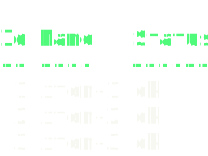
Set Size fitcrops the SVG to the measured content extent. Over-provisionRows(andCols) and let the renderer size the output to whatever the command actually drew — no trailing blank rows or right-side blank columns.SvgIntrinsicSize(on by default) puts explicitwidth/heighton the root<svg>, so an<img>embed gets a stable intrinsic size.SvgMetadata(on by default) addsdata-cols/data-rows/data-font-size(and cell-size / padding) to the root<svg>, so a consumer can compute exact display size without parsing theviewBox.
If you instead want an animated widget that mostly shows a static end state, add
Set Loop false so the reveal plays once and holds the final frame instead of flashing
empty → content on every loop.
See the configuration options reference for the full list of SVG and sizing settings.
Multiple screenshots
Capture different stages of a workflow in one recording:
Output "tutorial.svg"

Type "git status"
Enter
Wait
Screenshot "01-status.svg"

Type "git add ."
Enter
Wait
Screenshot "02-add.svg"

Type "git commit -m 'snapshot'"
Enter
Wait
Screenshot "03-commit.svg"
Screenshots with Hide/Show
Use Hide / Show to keep setup out of the recording while still capturing a clean
screenshot. Commands keep running while hidden — only frame capture pauses:
Output "demo.svg"

Hide
# Setup runs but isn't recorded
Type "cd project"
Enter
Wait
Type "clear"
Enter
Wait
Show

# Now recording
Type "npm test"
Enter
Wait
Screenshot "results.svg"        # Captured; the setup wasn't recorded
Step-by-step guide example
Capture each stage of a workflow as its own image:
Output "tutorial.svg"

# Step 1
Type "npm install"
Enter
Wait
Screenshot "step-1-install.svg"

# Step 2
Type "npm test"
Enter
Wait
Screenshot "step-2-test.svg"

# Step 3
Type "npm start"
Enter
Wait /Server listening/
Screenshot "step-3-running.svg"
Troubleshooting
Screenshot captures mid-animation or partial output.
Add Sleep 500ms before the Screenshot, or set Set ScreenshotWaitForInactivity true
to wait for the grid to settle automatically.
Screenshot after an Exec command looks incomplete.
The command's output hadn't settled yet. Add a bare Wait before the Screenshot, set
Set ScreenshotWaitForInactivity true, or switch to Set Mode static to emit a single
settled frame.
Screenshot shows the wrong content.
Make sure the preceding Wait (or Wait /pattern/) completed before the Screenshot
runs.
Screenshot file is not created.
- Verify the parent directory exists.
- Use an absolute path instead of a relative one.
- Check write permissions for the output directory.
See also
- Quick capture from the command line —
vcr snapandvcr captureproduce SVG screenshots with no tape file. - Tape syntax reference — the full
Screenshot,Wait, andExecgrammar. - Configuration options reference — every
Setsetting, includingMode,Size, and the SVG options.