Quick Capture Without Tape Files
Capture terminal screenshots and recordings directly from the command line without creating tape files
Overview
The snap and capture commands record terminal output directly from the command line, with no tape file to author. Run one command, get one SVG. They are ideal for:
- Quick one-off screenshots of command output
- CI/CD pipelines generating documentation
- Scripted generation of terminal visuals
Both commands run a single shell command and always produce SVG — the output is forced to .svg regardless of the extension you pass to -o. Because the output is SVG, these commands need no FFmpeg and no tape file: you can run them on a clean machine with just the vcr tool installed.
Tip
SVG is the zero-setup format. FFmpeg is only required for .gif/.mp4/.webm, and snap/capture never emit those — so there is nothing extra to install.
Snap command
vcr snap runs your command and writes a static SVG screenshot of its final output, cropped to the content extent.
Basic usage
vcr snap "echo Hello World" -o hello.svg
The command waits for your shell command to finish and the terminal output to stabilize, then captures the final state.
Here is a snap of a command's final output (vcr snap cropped to the content extent):
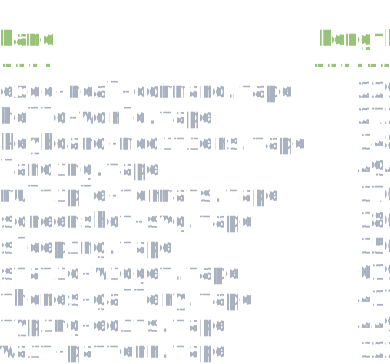
Example: documentation screenshot
vcr snap "dotnet run --project .\Example\ canvas" -o canvas.svg --cols 82 --rows 16
Example: styled screenshot
vcr snap "ls -la" -o files.svg --theme "Dracula" --disable-cursor --transparent-background
Capture command
vcr capture runs your command and writes an animated SVG of the whole run — every frame from start to finish.
Basic usage
vcr capture "npm install" -o install.svg
The command records frames while your shell command runs, then renders an animated SVG.
Here is a capture of a command from start to finish (vcr capture, every frame):
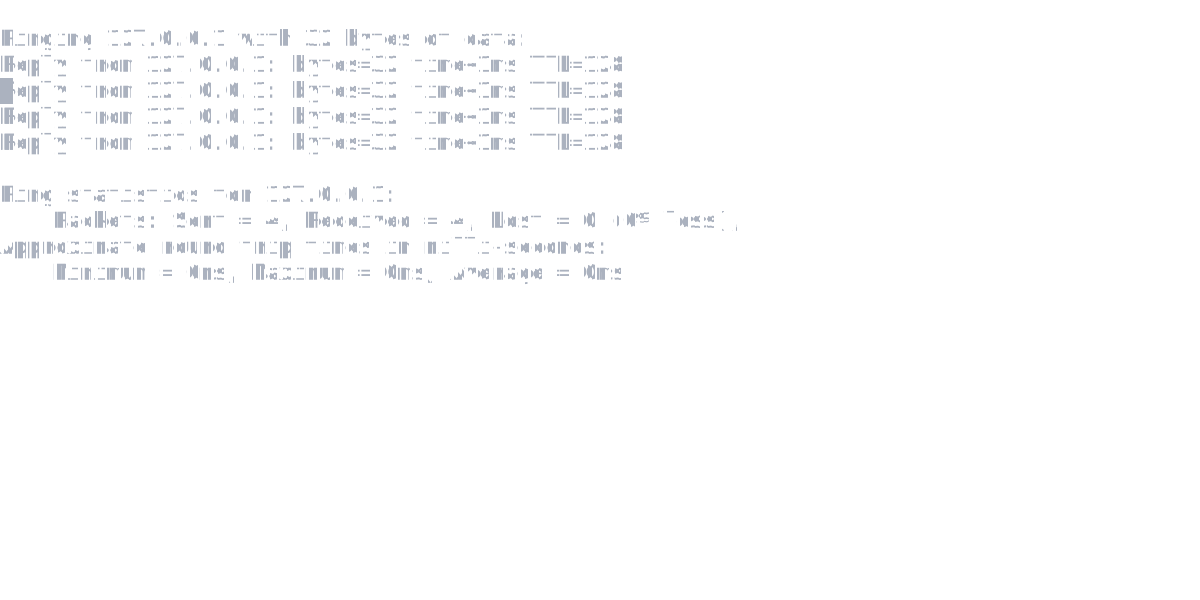
Example: build process recording
vcr capture "dotnet build" -o build.svg --cols 100 --rows 30
Example: themed recording
vcr capture "git status && git log --oneline -5" -o git.svg --theme "One Dark" --disable-cursor
Common options
Both commands take the same options:
| Option | Description | Example |
|---|---|---|
-o, --output |
Output file path (default: output.svg) |
-o demo.svg |
--theme |
Terminal color theme | --theme "Dracula" |
--cols |
Terminal width in columns | --cols 80 |
--rows |
Terminal height in rows | --rows 24 |
--font-size |
Font size in pixels | --font-size 18 |
--disable-cursor |
Hide the cursor in output | --disable-cursor |
--transparent-background |
Use a transparent background | --transparent-background |
--end-buffer |
Buffer time after the last activity | --end-buffer 500ms |
-v, --verbose |
Enable verbose logging | -v |
Theme examples
# Dracula theme
vcr snap "echo Hello" -o hello.svg --theme "Dracula"

# One Dark theme with transparent background
vcr snap "echo Hello" -o hello.svg --theme "One Dark" --transparent-background
Run vcr themes to list every available theme.
When to use each
| Use case | Command | Why |
|---|---|---|
| Final output only | snap |
Smaller file, just the result |
| Show the process | capture |
Animated, shows execution |
| Documentation images | snap |
Clean, static images |
| Demo recordings | capture |
Shows real-time behavior |
| CI/CD screenshots | snap |
Fast, deterministic |
Snap vs capture vs tape files
| Feature | snap |
capture |
Tape file |
|---|---|---|---|
| Output | Static SVG | Animated SVG | Any format |
| Commands | Single command | Single command | Multiple commands |
| Typing simulation | No | No | Yes |
| Setup required | None | None | Author a .tape file |
| Best for | Quick screenshots | Quick recordings | Complex demos |
Reach for a tape file when you need:
- Simulated typing with the
Typecommand - Multiple commands with precise timing
- Complex workflows with
Wait,Sleep,Hide/Show - Non-SVG output formats (GIF, MP4, WebM)
If you are new to tapes, start with Getting Started.
Troubleshooting
Output captures too early. Wait longer after the last output with --end-buffer:
vcr snap "slow-command" -o output.svg --end-buffer 2s
Terminal dimensions are wrong. Set explicit dimensions:
vcr snap "command" -o output.svg --cols 100 --rows 30
The command fails silently. Add verbose logging to see what is happening:
vcr snap "command" -o output.svg -v
Related
- CLI Command Reference — the full CLI command and option reference
- Getting Started — record your first tape file