Azure Table Storage - Hosting integration
Hosting integration
The Aspire Azure Storage hosting integration models the various storage resources as the following types:
AzureStorageResource: Represents an Azure Storage resource.AzureStorageEmulatorResource: Represents an Azure Storage emulator resource (Azurite).AzureTableStorageResource: Represents an Azure Table storage resource.
To access these types and APIs for expressing them, add the 📦 Aspire.Hosting.Azure.Storage NuGet package in the AppHost project.
dotnet add package Aspire.Hosting.Azure.StorageAdd Azure Table Storage resource
In your AppHost project, register the Azure Table Storage integration by chaining a call to AddTables on the IResourceBuilder<IAzureStorageResource> instance returned by AddAzureStorage. The following example demonstrates how to add an Azure Table Storage resource named storage and a table named tables:
var builder = DistributedApplication.CreateBuilder(args);

var tables = builder.AddAzureStorage("storage")
    .AddTables("tables");

builder.AddProject<Projects.ExampleProject>()
    .WithReference(tables)
    .WaitFor(tables);

// After adding all resources, run the app...
The preceding code:
- Adds an Azure Storage resource named
storage. - Chains a call to
RunAsEmulatorto configure the storage resource to run locally using an emulator. The emulator in this case is Azurite. - Adds a blob container named
tablesto the storage resource. - Adds the
tablesresource to theExampleProjectand waits for it to be ready before starting the project.
Caution
When you call AddAzureStorage, it implicitly calls AddAzureProvisioning—which adds support for generating Azure resources dynamically during app startup. The app must configure the appropriate subscription and location. For more information, see Local provisioning: Configuration.
Connect to an existing Azure Storage account
You might have an existing Azure Storage account that you want to connect to. You can chain a call to annotate that your AzureStorageResource is an existing resource:
var builder = DistributedApplication.CreateBuilder(args);

var existingStorageName = builder.AddParameter("existingStorageName");
var existingStorageResourceGroup = builder.AddParameter("existingStorageResourceGroup");

var storageaccount = builder.AddAzureStorage("storage")
    .AsExisting(existingStorageName, existingStorageResourceGroup)
    .AddTables("tables");

builder.AddProject<Projects.ExampleProject>()
    .WithReference(storageaccount);

// After adding all resources, run the app...
Important
When you call RunAsExisting, PublishAsExisting, or AsExisting methods to work with resources that are already present in your Azure subscription, you must add certain configuration values to your AppHost to ensure that Aspire can locate them. The necessary configuration values include SubscriptionId, AllowResourceGroupCreation, ResourceGroup, and Location. If you don't set them, "Missing configuration" errors appear in the Aspire dashboard. For more information about how to set them, see Use existing Azure resources.
Configure Azurite container
There are various configurations available to container resources, for example, you can configure the container's ports, environment variables, it's lifetime, and more.
Configure Azurite container ports
By default, the Azurite container when configured by Aspire, exposes the following endpoints:
| Endpoint | Container port | Host port |
|---|---|---|
blob |
10000 | dynamic |
queue |
10001 | dynamic |
table |
10002 | dynamic |
The port that they're listening on is dynamic by default. When the container starts, the ports are mapped to a random port on the host machine. To configure the endpoint ports, chain calls on the container resource builder provided by the RunAsEmulator method as shown in the following example:
var builder = DistributedApplication.CreateBuilder(args);

var storage = builder.AddAzureStorage("storage")
  .RunAsEmulator(azurite =>
  {
      azurite.WithBlobPort(27000)
             .WithQueuePort(27001)
             .WithTablePort(27002);
  });

// After adding all resources, run the app...
The preceding code configures the Azurite container's existing blob, queue, and table endpoints to listen on ports 27000, 27001, and 27002, respectively. The Azurite container's ports are mapped to the host ports as shown in the following table:
| Endpoint name | Port mapping (container:host) |
|---|---|
blob |
10000:27000 |
queue |
10001:27001 |
table |
10002:27002 |
Configure Azurite container with persistent lifetime
To configure the Azurite container with a persistent lifetime, call the WithLifetime method on the Azurite container resource and pass ContainerLifetime.Persistent:
var builder = DistributedApplication.CreateBuilder(args);

var storage = builder.AddAzureStorage("storage")
    .RunAsEmulator(azurite =>
    {
        azurite.WithLifetime(ContainerLifetime.Persistent);
    });

// After adding all resources, run the app...
Configure Azurite container with data volume
To add a data volume to the Azure Storage emulator resource, call the WithDataVolume method on the Azure Storage emulator resource:
var builder = DistributedApplication.CreateBuilder(args);

var storage = builder.AddAzureStorage("storage")
    .RunAsEmulator(azurite =>
    {
        azurite.WithDataVolume();
    });

// After adding all resources, run the app...
The data volume is used to persist the Azurite data outside the lifecycle of its container. The data volume is mounted at the /data path in the Azurite container and when a name parameter isn't provided, the name is formatted as .azurite/{resource name}. For more information on data volumes and details on why they're preferred over bind mounts, see Docker docs: Volumes.
Configure Azurite container with data bind mount
To add a data bind mount to the Azure Storage emulator resource, call the WithDataBindMount method:
var builder = DistributedApplication.CreateBuilder(args);

var storage = builder.AddAzureStorage("storage")
    .RunAsEmulator(azurite =>
    {
        azurite.WithDataBindMount("../azurite/data");
    });

// After adding all resources, run the app...
Important
Data bind mounts have limited functionality compared to volumes, which offer better performance, portability, and security, making them more suitable for production environments. However, bind mounts allow direct access and modification of files on the host system, ideal for development and testing where real-time changes are needed.
Data bind mounts rely on the host machine's filesystem to persist the Azurite data across container restarts. The data bind mount is mounted at the ../azurite/data path on the host machine relative to the AppHost directory (IDistributedApplicationBuilder.AppHostDirectory) in the Azurite container. For more information on data bind mounts, see Docker docs: Bind mounts.
Connect to storage resources
When the Aspire AppHost runs, the storage resources can be accessed by external tools, such as the Azure Storage Explorer. If your storage resource is running locally using Azurite, it will automatically be picked up by the Azure Storage Explorer.
Note
The Azure Storage Explorer discovers Azurite storage resources assuming the default ports are used. If you've configured the Azurite container to use different ports, you'll need to configure the Azure Storage Explorer to connect to the correct ports.
To connect to the storage resource from Azure Storage Explorer, follow these steps:
- 1
Run the Aspire AppHost.
- 2
Open the Azure Storage Explorer.
- 3
View the Explorer pane.
- 4
Select the Refresh all link to refresh the list of storage accounts.
- 5
Expand the Emulator & Attached node.
- 6
Expand the Storage Accounts node.
- 7
You should see a storage account with your resource's name as a prefix:
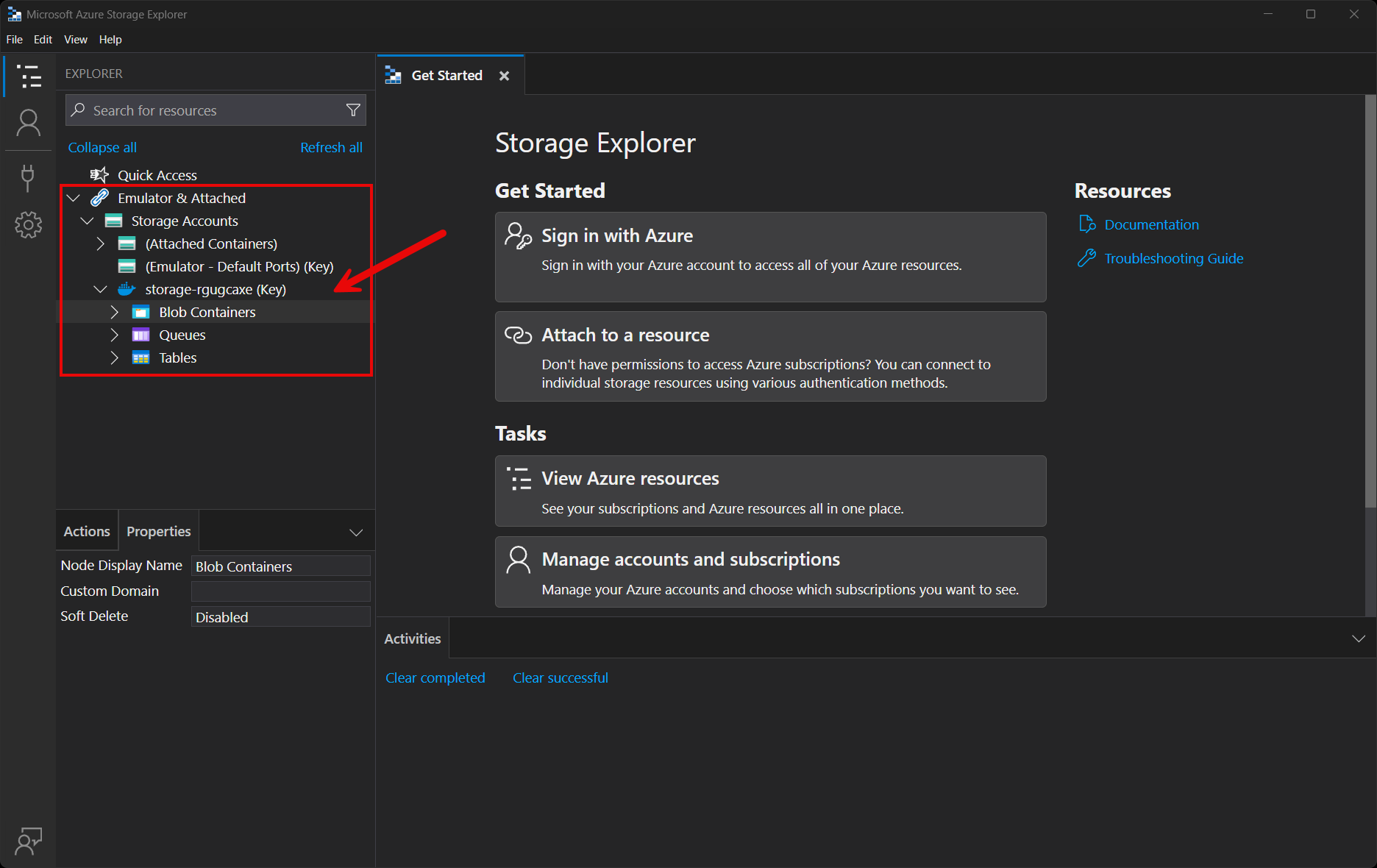
You're free to explore the storage account and its contents using the Azure Storage Explorer. For more information on using the Azure Storage Explorer, see Get started with Storage Explorer.
Connection properties
When you reference Azure Storage resources using WithReference, the following connection properties are made available to the consuming project:
Table Storage
The Table Storage resource exposes the following connection properties:
| Property Name | Description |
|---|---|
Uri |
The URI of the table storage service, with the format https://mystorageaccount.table.core.windows.net/ |
ConnectionString |
The connection string for the table storage service |
Note
Aspire exposes each property as an environment variable named [RESOURCE]_[PROPERTY]. For instance, the Uri property of a resource called table1 becomes TABLE1_URI.